
Groups & Snapshots (⌘G)
Organize channels into groups to see, listen to, and make changes to them all at once in the main screen.
Snapshots, or scenes, let you program different groups and channels for different parts of a performance.
In the Groups & Snapshots window, you can name snapshots, name groups, assign channels to groups, add new snapshots with independent group members, and set MIDI parameters per snapshot for an external snapshot trigger.
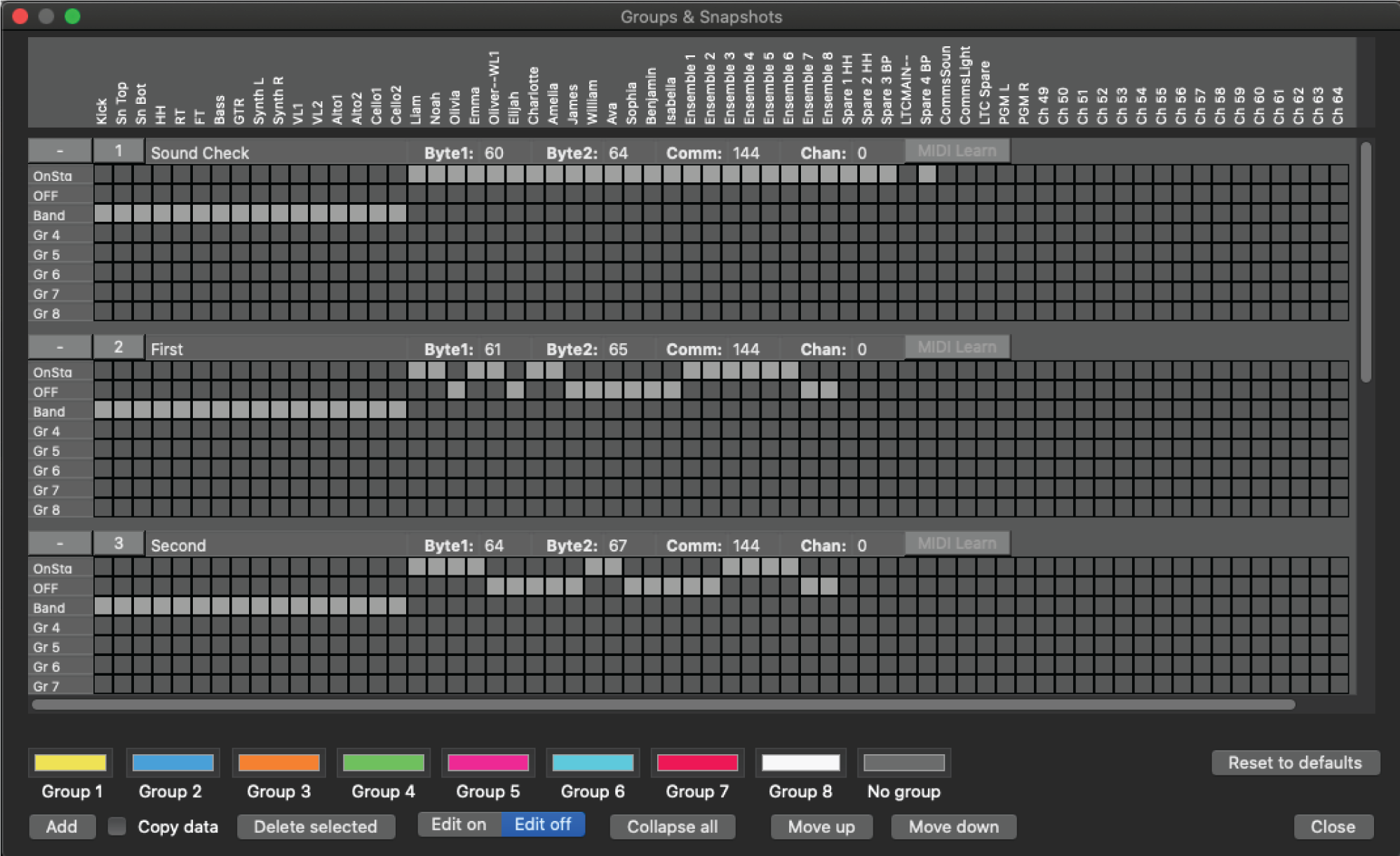
To make any changes to groups or snapshots, click Edit on.
Click Add to create a new snapshot.
Click + to assign channels to groups for each snapshot.
Select a color for each group. Channel names will be highlighted with the group color in the main window.
Copy the setup from a snapshot to a new snapshot by selecting .
To move a snapshot, select the snapshot number and then click Move up or Move down.
Wavetool snapshot changes can be programmed to follow any MIDI commands. In Groups & Snapshots (with edit on), select MIDI Learn for any snapshot and then send MIDI command from the device you want to control the snapshots with. MIDI command parameters can also be adjusted manually.
Go to or press ⌘K to see a list of your snapshots. Click each snapshot name to move between the snapshots.