
Wavetool Home Screen
Toolbar
 Select: Choose this icon and then click or tap channels to solo. When a channel is soloed, the audio will be sent to Wavetool's audio output device.
  Zoom: Select a channel to open a timeline with detailed channel information. For more information, go to the Timeline Window topic.
  Select and zoom: Select a channel to both solo and see detailed timeline information.
 Panel views : Move between panels A and B. Select which panel each channel strip appears on in Channel I/O.
 Solo Clear: Clear all soloed channels, including hard solos, by pressing Solo Clear for 1.5 seconds. Adjust this timing in your preferences.
 Alert Reset: Clear all alerts.
 Chat: Open the chat window. For more information, see the Chat topic.
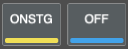 Group buttons (1-8): Groups that have channels assigned to them are displayed here. Listen to all the channels in a group by pressing the group button. For more information, go to the Groups and Snapshots topic.
Channels
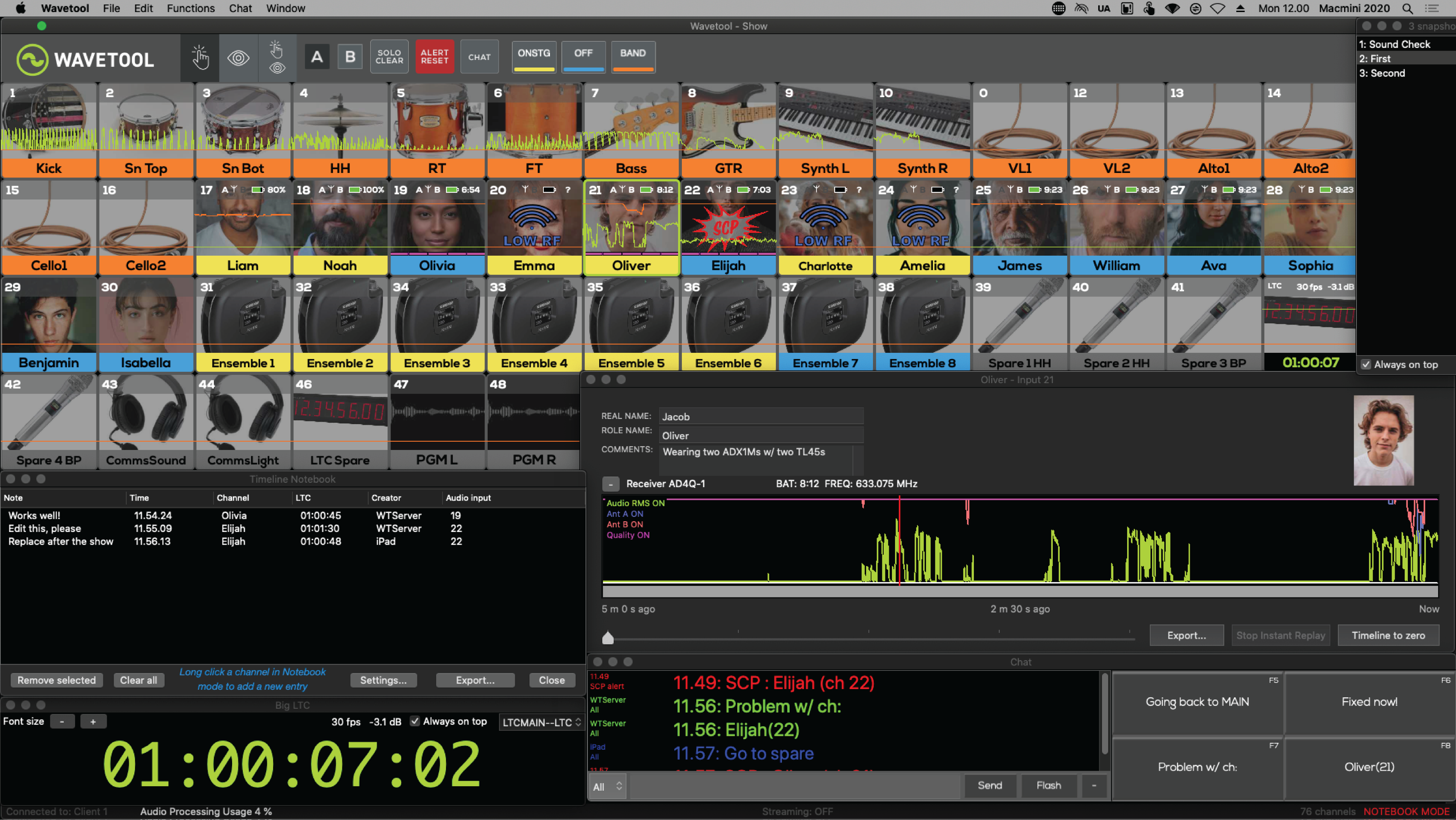
On each channel strip, you can see the channel name, channel image, and a green line with the last 10 seconds of incoming audio level. Audio levels below -48 dBFS are not shown.
Adding a channel image can help you and other users identify talent. To learn how to add a picture to a channel, go to the Players topic.
Click or tap a channel to listen to it.
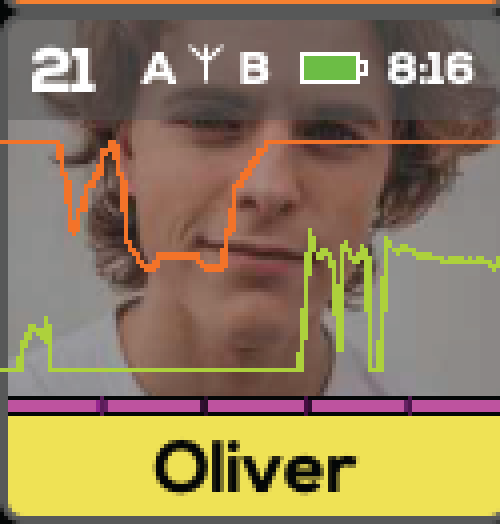
- Green line: Last 10 seconds of incoming audio
- Orange line: Last 10 seconds of received antenna signal strength, combined from all antennas, showing the highest value. Individual values for all antennas can be seen in the Timeline window.
- Green frame: Active channel. You can change the solo mode in preferences.
- White frame: Channel is in hard solo mode
- Red overlay with SCP symbol: Problem with channel. To clear the alert, click Reset or hit the space bar. For more information, go to the SCP topic.
- Pink dashes above channel name: Quality level. Only available for some receivers. Quality level can be low even if RF level is high.
- Red dashes above channel name: Specific to Sound Devices A10 RACK with A10-RX. The transmitter has a memory card slot and it allows the user to record directly to the memory card. Wavetool is able to show if the recording is on and displays it on each channel strip in red.
- Background of channel name is in color: The channel is part of a group. For more information, go to the Groups and Snapshots topic.