
Managing Devices
Add and manage devices in the Wavetool inventory.
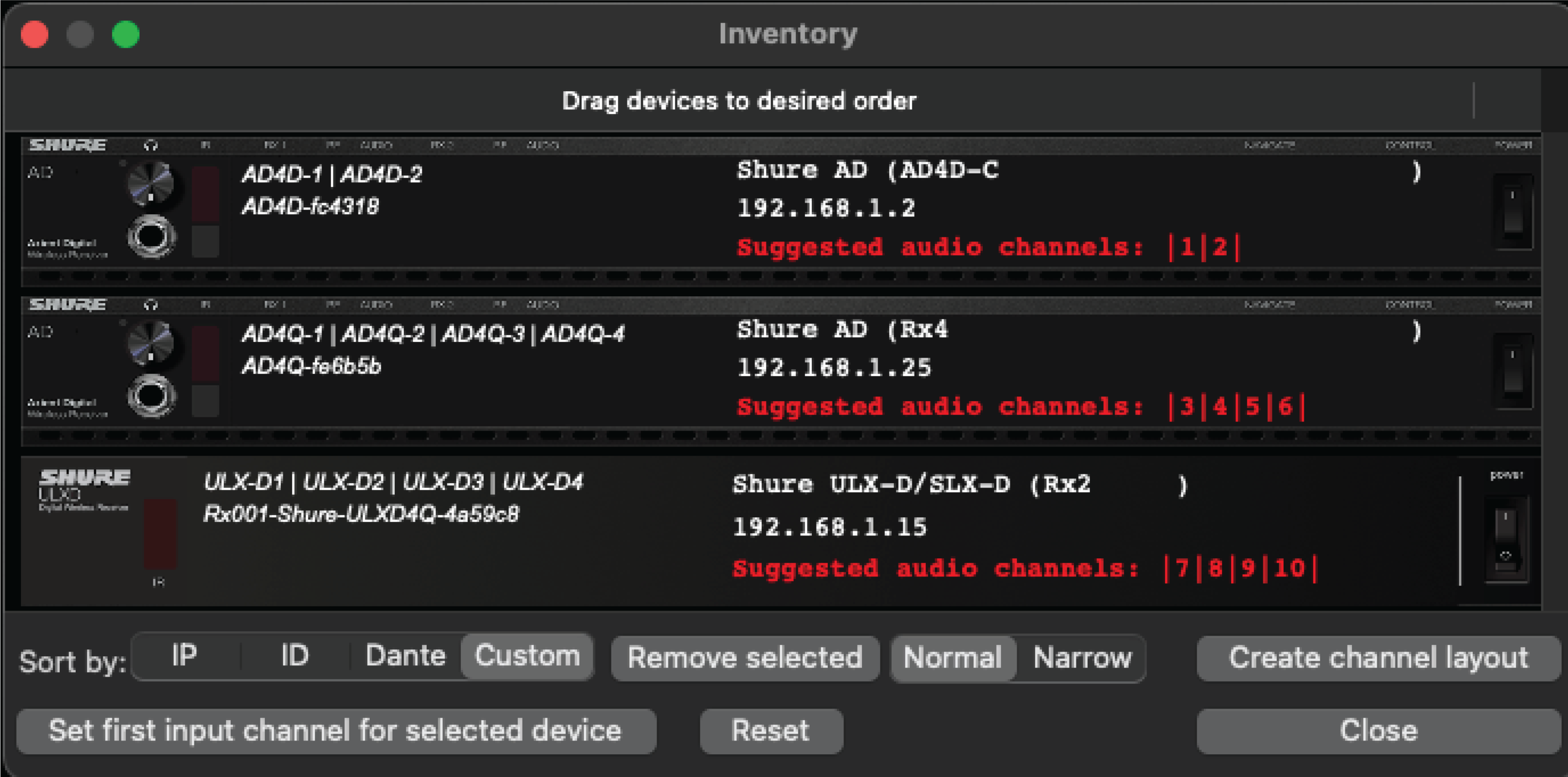
To open the inventory, go to or use the shortcut ⌘D.
Adding Devices
Auto-discovery: Wavetool can automatically discover Axient Digital, ULX-D, and SLX-D receivers on your network. Check Auto-discover Shure Axient Digital, ULX-D, and SLX-D in the opening window and choose the correct network interface connected to the control port of the receivers. If you are using auto-discovery for Shure Axient Digital, ULX-D, or SLX-D receivers, these devices will be automatically added to the Wireless IP list.
- Go to or use the shortcut ⌘W.
- If you are not importing information from Wireless Workbench, click Add.
- Enter the receiver IP address and select the receiver type. If the receiver is connected correctly, the Ping column reads OK.
- Click Save as to save your IP setup and open it at a later time.
Once the setup is done, the Channel I/O window shows all detected receivers by name in the drop-down menu.
- For Sony DWX receivers, you'll need to have the transmitters turned on when you pair the receivers with Wavetool for the first time.
- For the Sennheiser G3 500 & 2000 series the RX/TX firmware needs to be 1.7 or higher.
- Due to a limitation on the receiver, it's not possible to run the Wisycom Manager simultaneously with Wavetool.