
Ch I/O (⌘I)
See a list of your Wavetool channels and manage channel details in the Channel strips window, also called Channel I/O.
To open Channel I/O, go to or use the shortcut ⌘I.
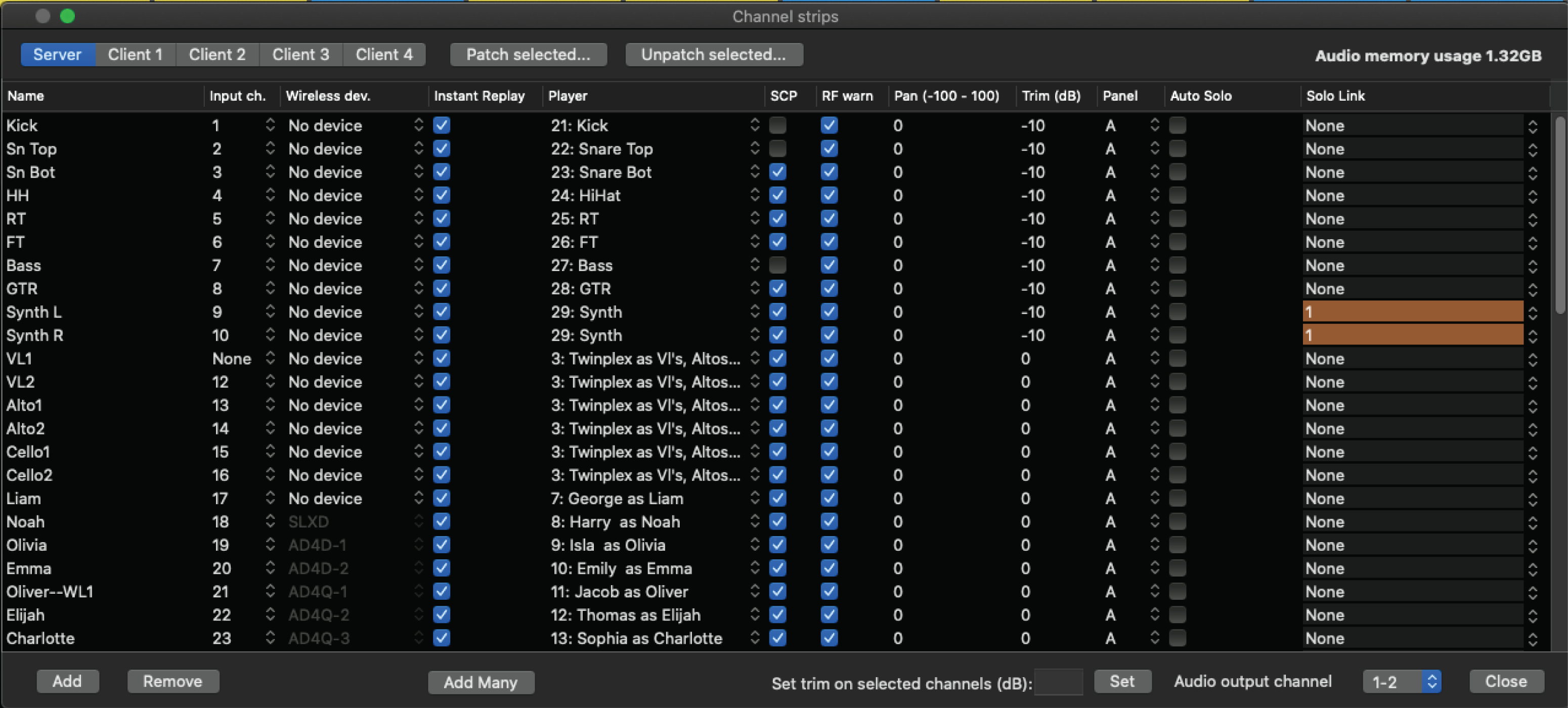
- Add channels at the bottom of the window. To add multiple channels at once, click Add Many.
- To make quick adjustments, press Shift + click and select multiple channels.
- Double click a channel to rename it.
- Press Enter to move between channels.
- Drag and drop channels and columns to edit the order.
- To set trim for multiple channels at once, select multiple channels, enter the trim you want in the Set trim on selected channels field, and click Set to apply the change to all selected channels.
- Click between server and client views to see and modify settings.
- Rename clients by clicking the client header.
- For more on managing clients, see the Clients topic.
- Patch selected: First choose the channels to patch (for example, from 1-64) and then input the first channel to be patched.
- Unpatch selected: First choose the channels to be unpatched (for example, 1-32) and then click Unpatch selected to set the inputs for the selected channels to be "none".
Audio memory usage: Shows how much memory is used by Instant Replay.
Column descriptions
Name: Edit names by double clicking on the name. To replace the channel strip number, write “–” plus three characters after the channel name. The channel strip number will be replaced by these three characters.

Input ch: Assign hardware inputs to channels.
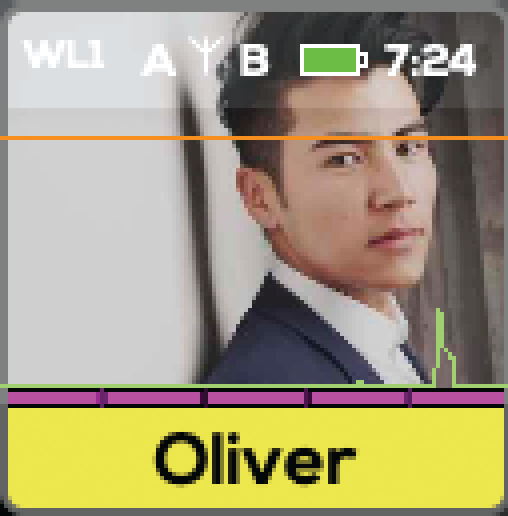
Wireless dev.: Click a row to show a list of found receivers. Link an RF receiver to the input channel. This will display RF and battery data in the main window.
Player: Assign a player to your channel. See the Players topic for more information.
SCP: Enable or disable SCP. SCP is designed for live microphones, and if you have other input sources you can disable SCP to avoid too many false alerts.
RF warn: Enable or disable RF warnings. If your transmitters often move out of reach, you might not want to be alerted every time.
Pan: Between -100 (left) and 100 (right)
Trim: Edit the input trim (Channel max trim is now +28dB).
Panel: Choose the panel (A or B) where the channel is shown.
Instant Replay: Enable instant replay on the selected channel.
Auto Solo: Choose channels that will be soloed when there is no active solo selection.
Solo Link: Link channel solos.