Scanning
Run a scan in Wireless Workbench to generate a depiction of the spectrum noise around you.
Scan data is shown on the plot and can inform your frequency calculation (see the Frequency Coordination section) and help you observe and troubleshoot issues in your spectral environment (see the Frequency Plot section).
Import a Scan
You can import and open scan files in Wireless Workbench to use in your frequency calculations.
- File - import a scan from a location on your computer
- Hardware - import a scan from connected hardware
- Scan Library - access the Scan Library and import a scan
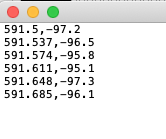
Wireless Workbench can import scan files that conform to a strict format of frequency/signal strength pairs. The file must conform to the following requirements:
- Format must be .csv, .txt, or .spa
- File contents must not include any header information
- File contents can only include frequency values, followed by a comma, followed by a signal level

- Go to the Frequency coordination tab, or select Frequency plot from the toolbar.
- In the scan data section, select the import icon (
 ) and choose to add a scan from your saved files, the hardware, or the scan library.Note:When you import from a Spectrum Manager, save the scan on the hardware before you import it. For the PSM1000 receiver, send the scan to the transmitter via IR sync before attempting to import it.
 - Browse for the file you want to view and select Open to see the scan.
- If you want to save a scan imported from hardware as a scan file, right-click the scan data.Note:Scans with an asterisk (*) are unsaved.
Perform a New Scan
You can perform scans in the Frequency coordination tab, or scans in the Frequency Plot can help you observe and troubleshoot issues.
In the Frequency coordination tab, you can run or open a scan of the RF spectrum and use scan data to automatically exclude occupied frequencies from your calculation. Workbench generates these exclusions based on the peak hold, or summary of maximum levels of potential interference, of all selected scans.
You can configure scan settings for online devices by selecting the gear next to Scan sources. For information on which devices are capable of scanning, see Supported Features for Shure Components. Double-click a setting to edit it. Depending on the device, adjustable settings may include
- Start - The frequency at which the device starts scanning
- Stop - The frequency at which the device stops scanning
- Resolution bandwidth - Affects the scanner's ability to distinguish between adjacent signals
- Step size - How much space there is between frequency readings
- Sweep interval - The interval between end of a sweep to the beginning of the next sweep
- Go to the Frequency coordination tab, or select Frequency plot on the toolbar.
- From the sidebar, select a scan source.
 Select all
 Clear all
Note:The coverage bar shows scan source ranges in dark green. When a scan is running and someone selects another scan source, currently scanning sources’ ranges are shown in a lighter color. - For devices that support per-antenna scanning, select the antennas you want to scan with.
- Choose whether to scan in one sweep or a continuous sweep.
- One sweep - Scan once with each antenna
- Continuous - Scan continuously for up to eight hours
- Start your scan.
- To stop the scan, select the stop icon next to the scanning device.
- Right-click the scan data to save it as a scan file. Note:Scans with an asterisk (*) are unsaved.
Select Scans for Frequency Coordination
Any selected scans in the frequency coordination plot will be used to generate exclusions when you calculate frequencies. To see a scan on the plot, select it in the scan sidebar.

You can select multiple scans at once and adjust settings on the plot to change the way Wireless Workbench calculates exclusions.
- 1. Peak hold check box
- Check this box to see a line on the plot that shows the maximum levels of potential interference from among the selected scans.
- 2. Exclusion threshold line
- Wireless Workbench classifies scan data above this line as a frequency to avoid. Drag the line or update in the sidebar to change the exclusion threshold.
- 3. Peak threshold line
- When Wireless Workbench performs a frequency calculation, peaks that exceed this line are classified as an active transmitter. Wireless Workbench assigns a transmitter profile to these peaks and creates a frequency buffer around the peak to minimize the risk of interference. For more information on peak thresholds, see the Assign a Profile to Scan Peaks section.
- 4. Additional exclusions check box
- Check this box to see the exclusions generated from the both the exclusion and the peak thresholds.
For more information about the frequency coordination plot, see the Frequency Plot section.
Add Informational Overlays
You can add other information to your frequency coordination plot, including band splits, intermodulation products, and channel spacing.
- Band splits - Select Band overlay to see shaded regions that correspond to the tunable bandwidth for the devices in your inventory.
- Channel spacing - Select a channel spacing label to see a visualization of spacing parameters.
- Intermods - Select an intermodulation label to see a visualization of it on the plot. The heights correspond to the order of the intermod.